create desktop apps using popular server-side technologies like PHP.
Produce apps for the following platforms
Be ahead of your competitors

Windows
from WinXP to Win10

Mac OS
from 10.4 to current version

Linux
Any distro for x86 or x86_64





Download Web4GUI
“All inclusive” demo
|
|



“Compact“ demo
|
|
"All inclusive" demo includes everything - PHP, Perl, Python, Java and Tomcat for scripting, MySQL, SQLite, FireBird (windows-only) databases. Also it includes following Windows-only features: Portable FireFox, ASP and ASP.NET support.
"Compact" demo includes PHP, Perl, MySQL, SQLite, and the following Windows-only features: FireBird Database, Portable FireFox, ASP and ASP.NET support. Compared to "all inclusive" demo, it lacks Python and Tomcat/Java support.
evaluation notes | what is new in current version
Lots of ways to distribute resultant app
Fit needs of any of your customers!
Pricing
Unlimited Applications
edition
edition
$789
- Unlimited projects
-
Unlimited copies
of your app - Your app does not expire
Single Application (200 Copies Max) edition
$349
- Create only one app
-
Distribute up to 200
copies of the app - Your app does not expire
More on pricing and licensing terms.
How Web4GUI differs from usual web server?
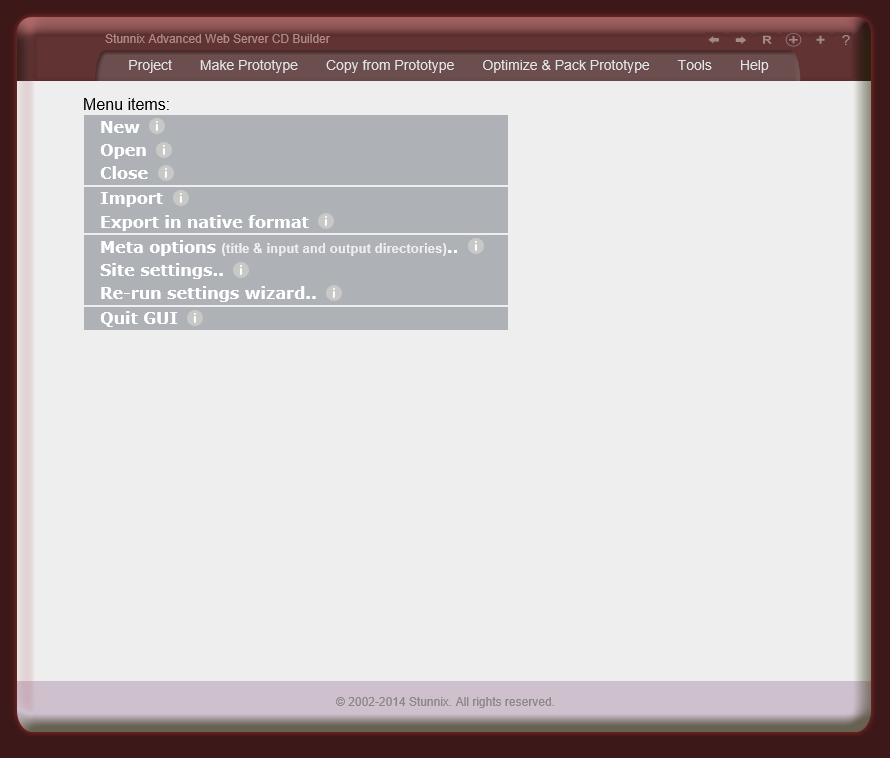
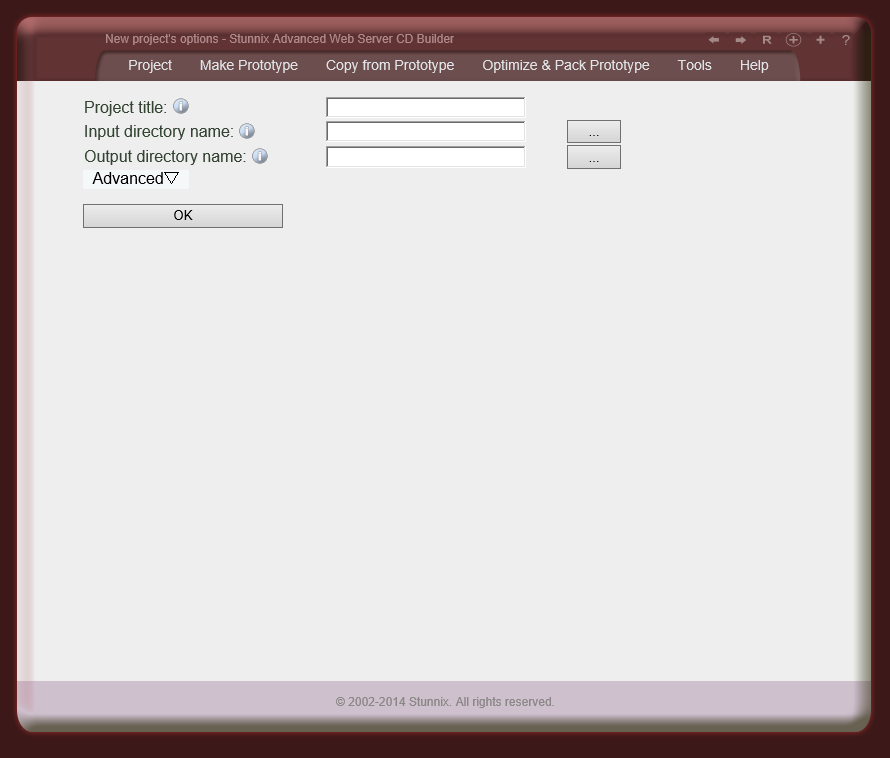
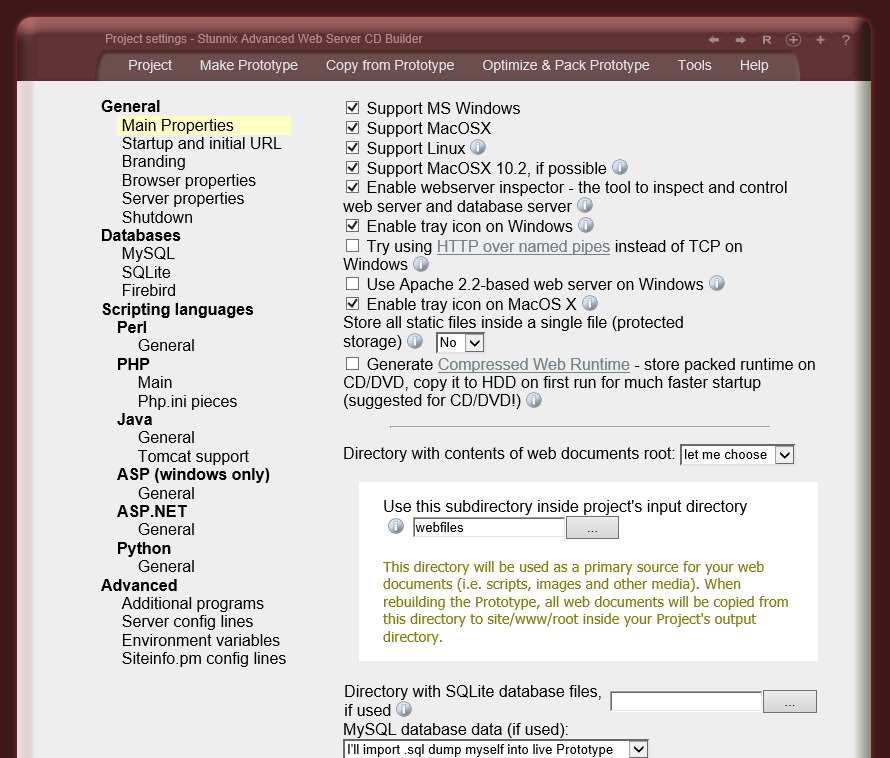
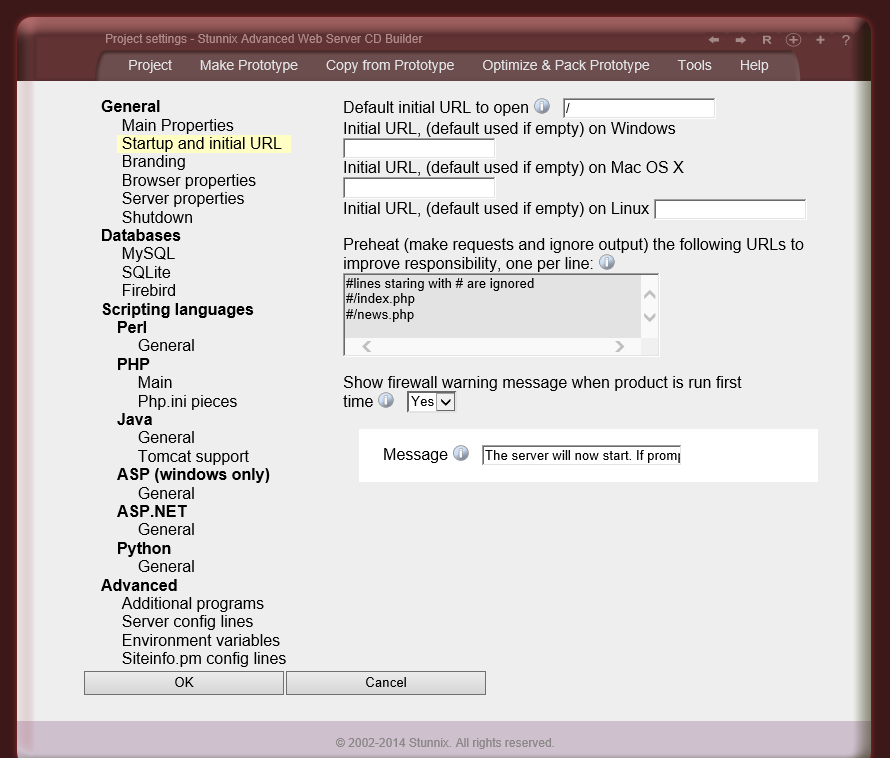
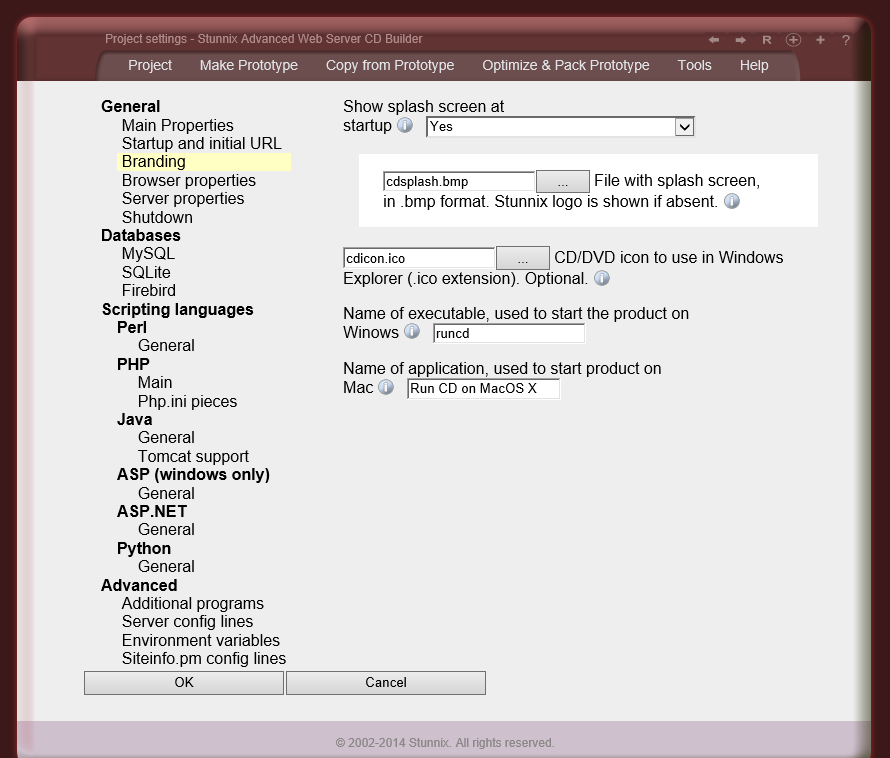
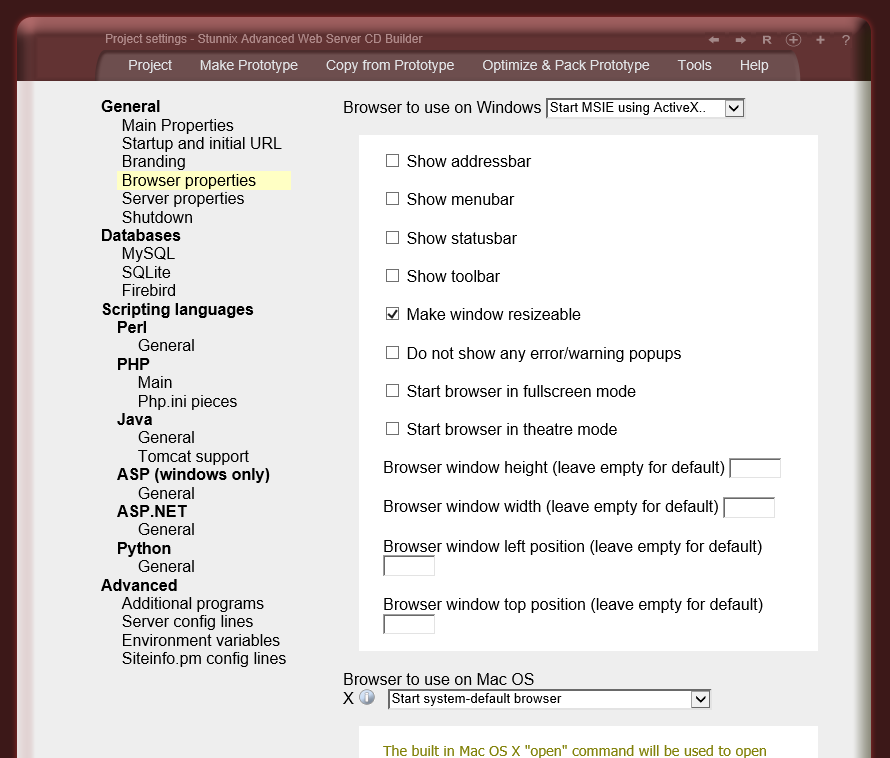
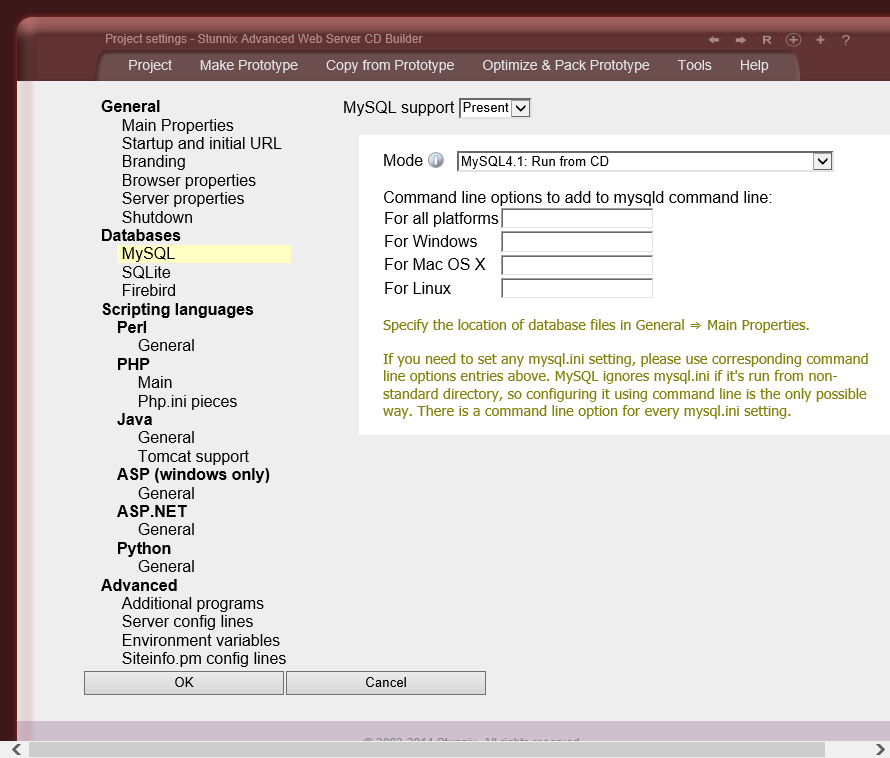
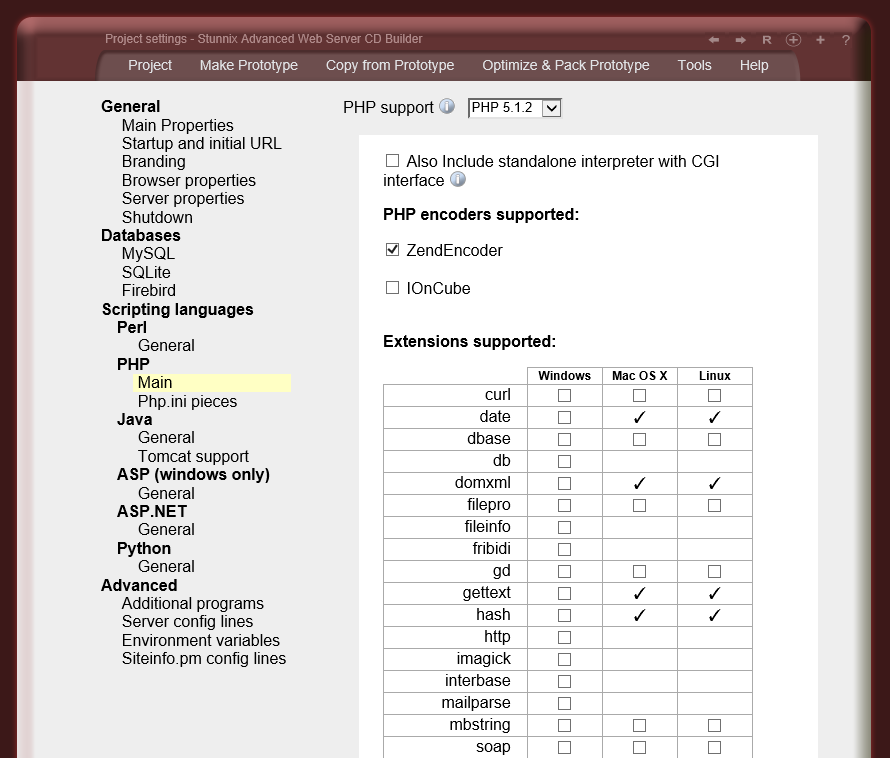
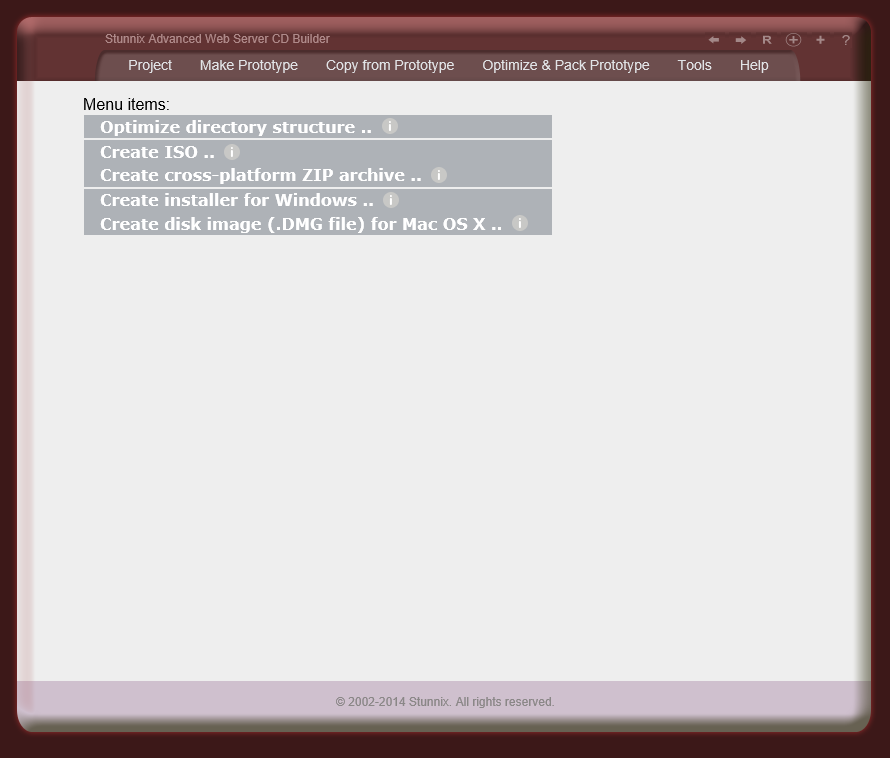
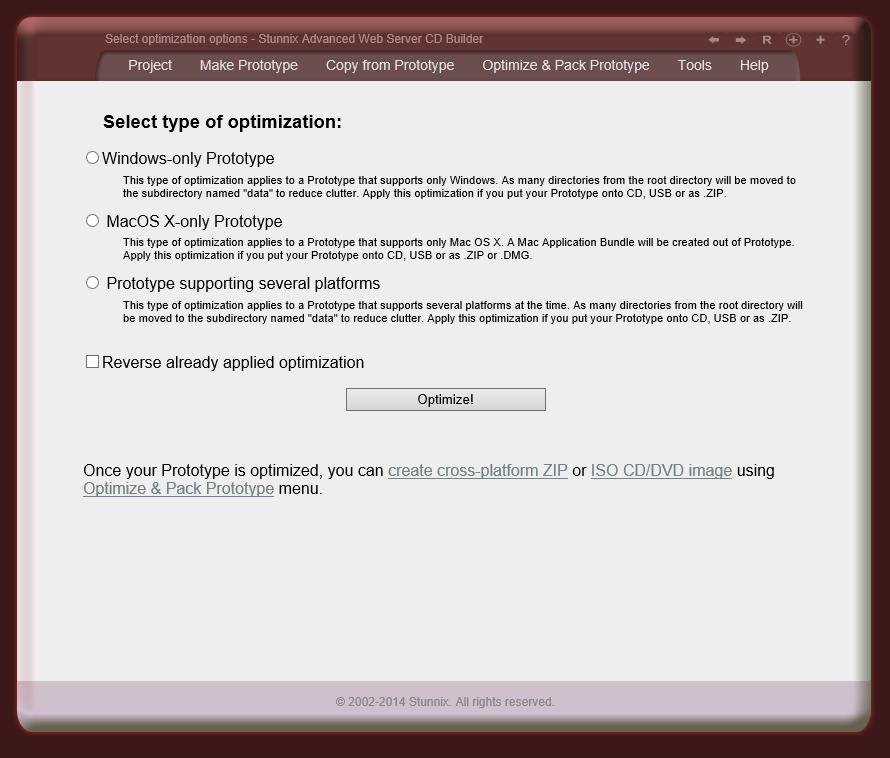
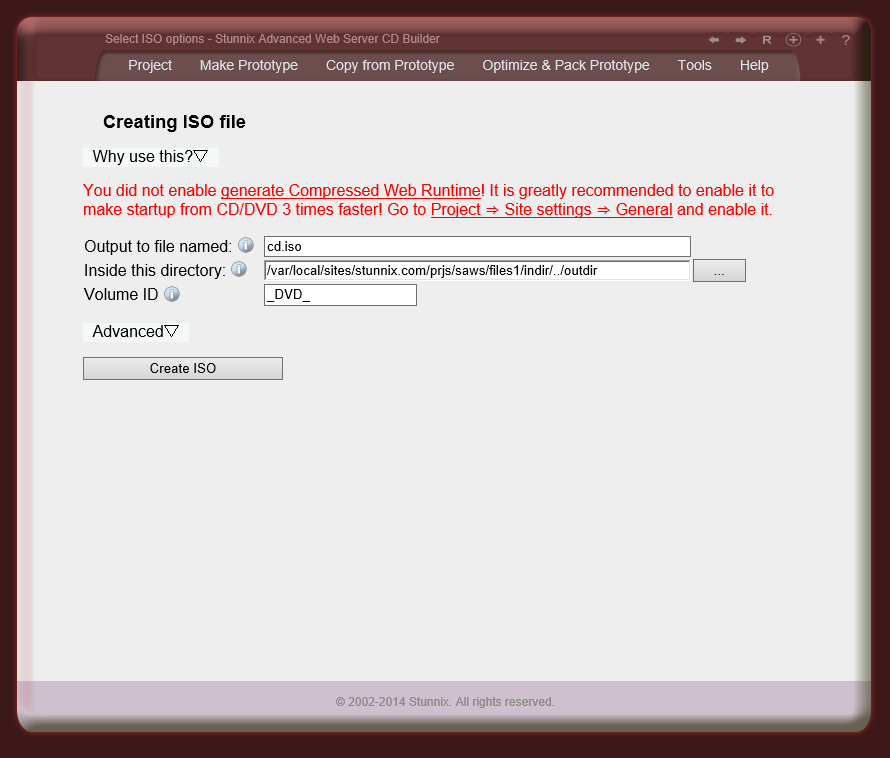
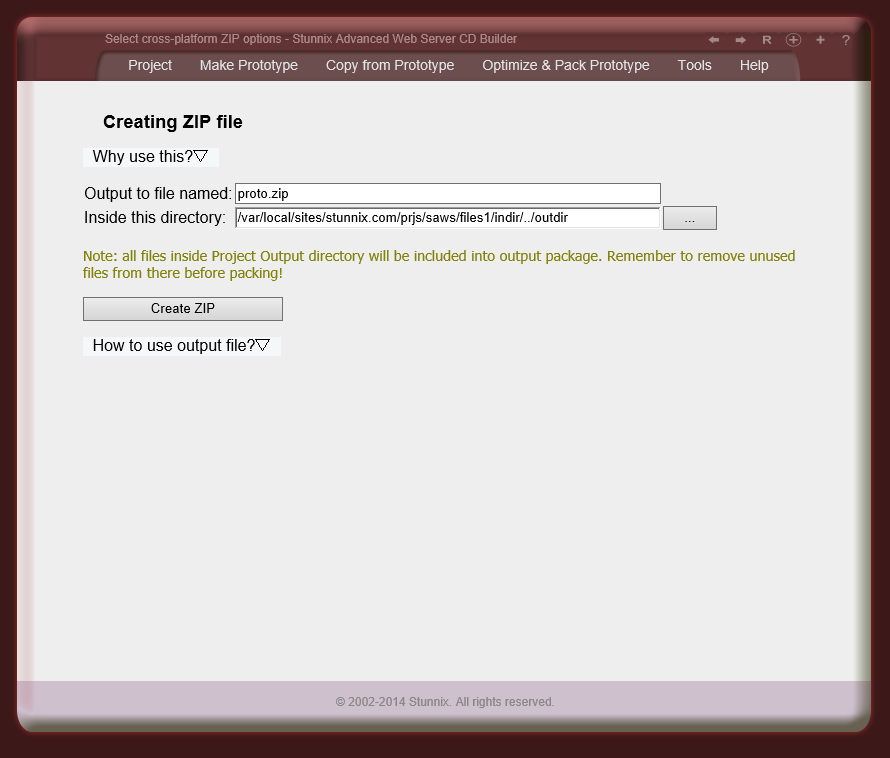
Screenshots of CDBuilder tool
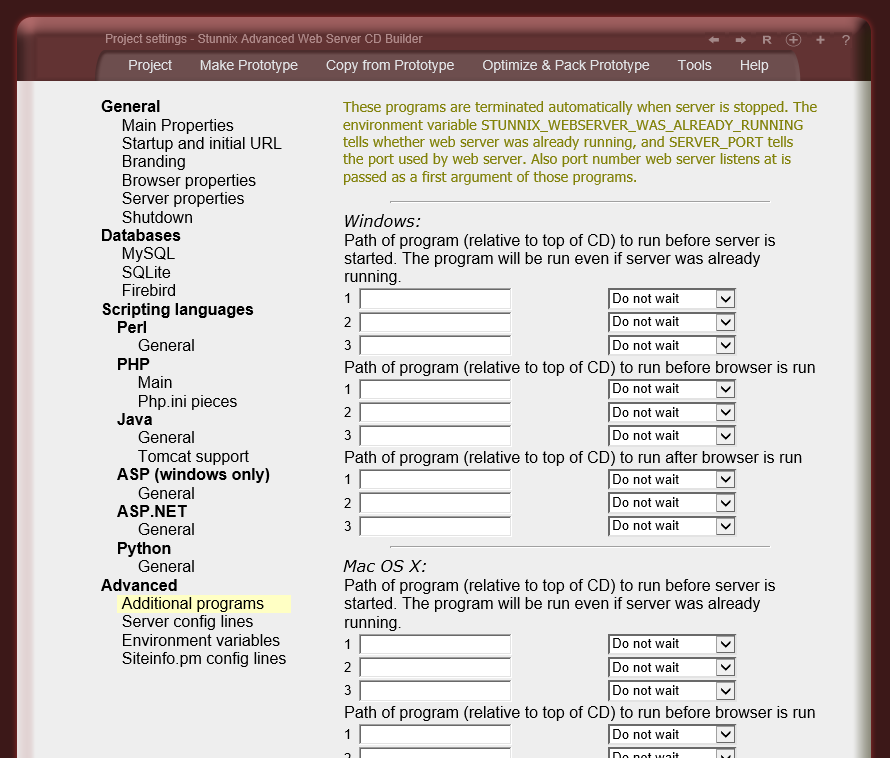
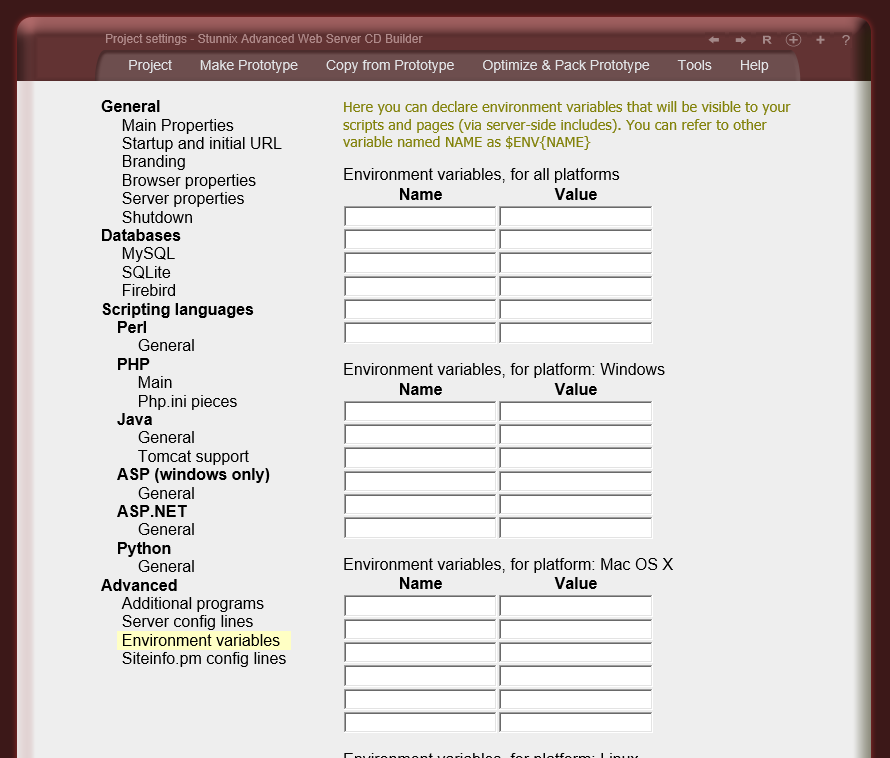
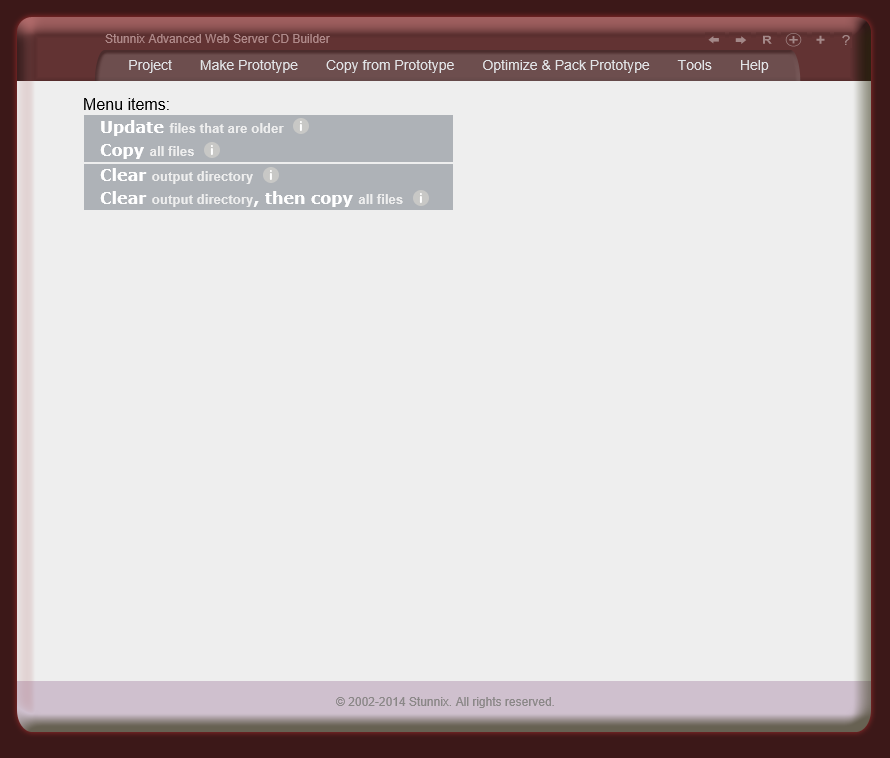
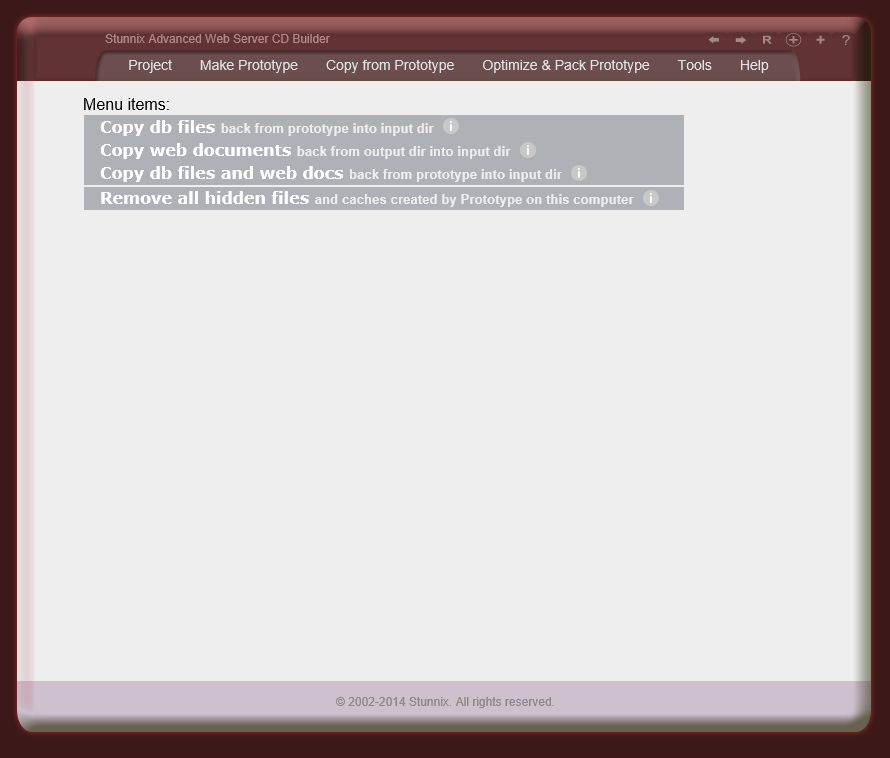
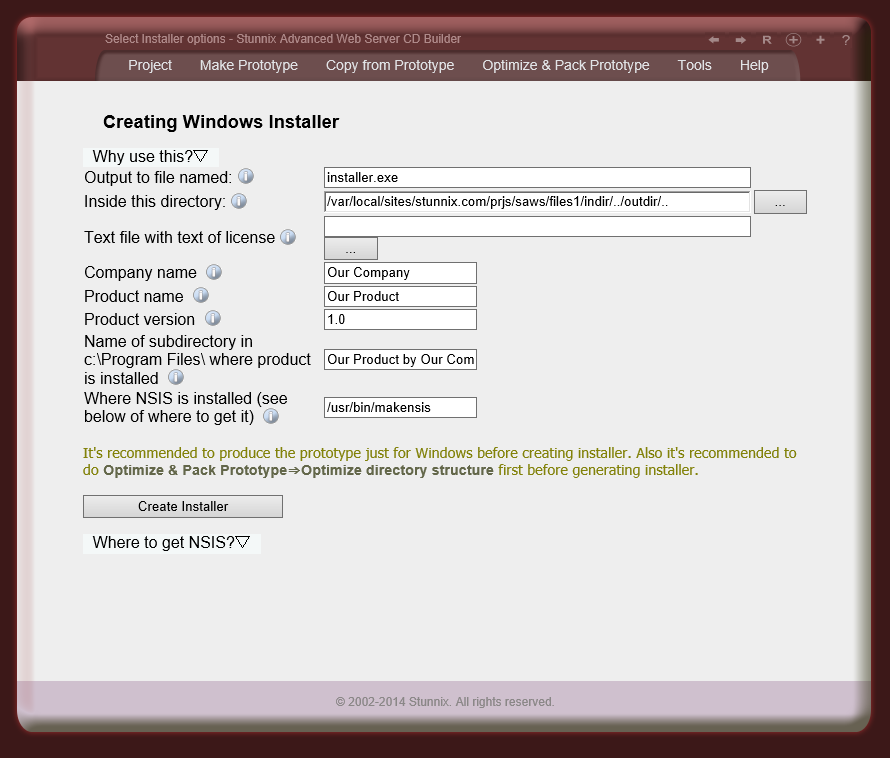
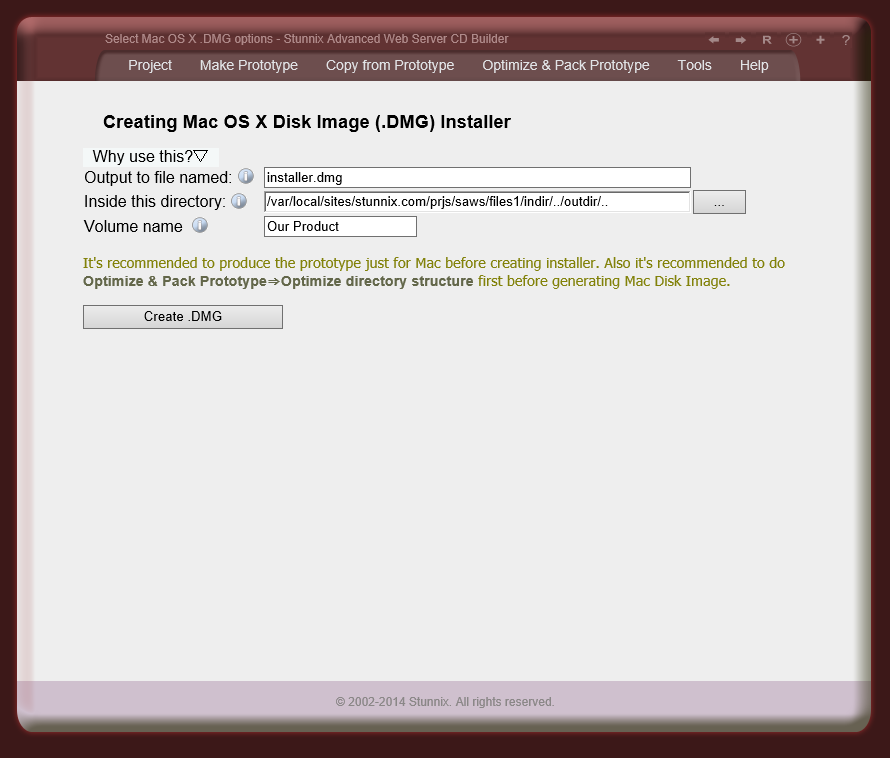
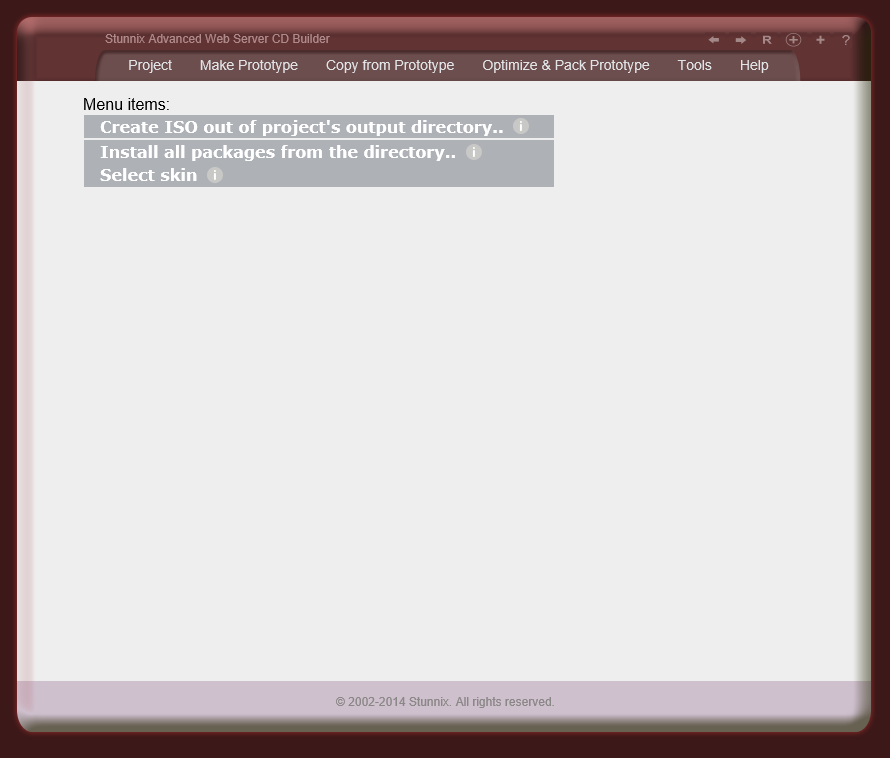
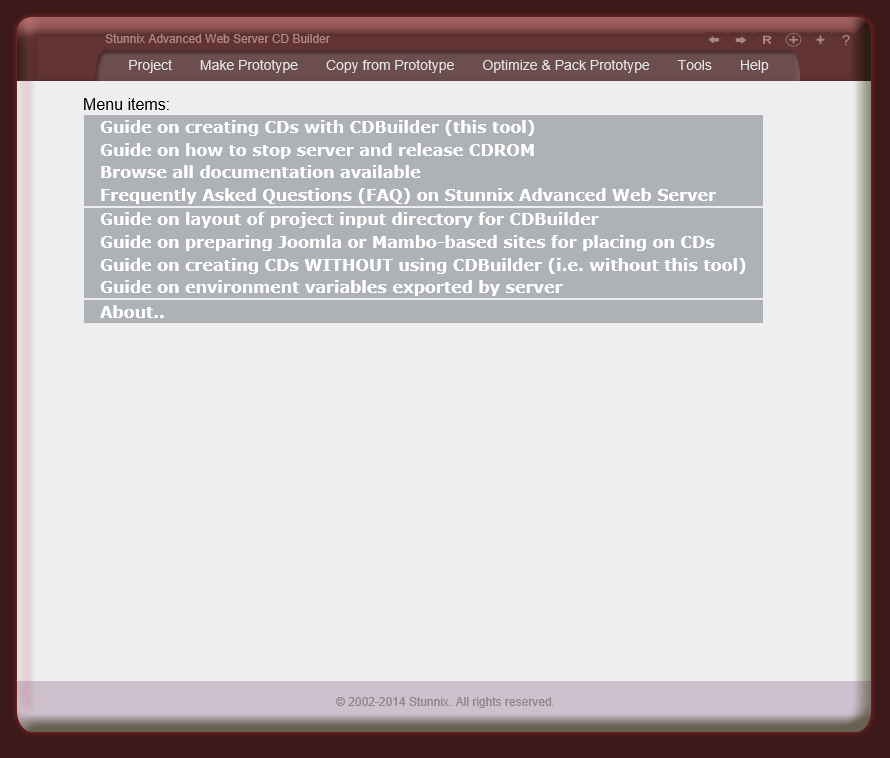
Below are screenshots of Stunnix Stunnix Advanced Web Server CDBuilder GUI. There is a LIVE ONSITE demo of it too!
Intended uses for the product
Click on the small button "more info" below each item to expand details.
Create brochures, presentations, and product catalogues in the form of web sites and put
them on CDs.
Release snapshots of public pages from your website on CDs or DVDs for users with
slow connections.
Create advanced applications for desktops in the form of web sites and sell
them as downloadable versions or on CDs from your store; turn them into
multi-user applications in a single click!
Save a site that you are developing to a USB memory stick and show
it to your customers on any of their computers
Unique!
Have a personal snapshot of the site you are developing on just one
single computer (or on a set of computers that you are working on
throughout your day).
Unique!
Supports all major desktop operating systems - Windows, Mac OS X (for Intel and PPC
processors), and Linux!
Unique!
Supports HTTP over Named Pipes on Windows - to be undetected and unaffected by firewalls;
a special version of Portable FireFox that can communicate with web server over Named Pipes is also provided!
Unique!
Has "Compressed Web Runtime" technology that makes startup time from CD/DVD same as startup time from HDD!
Unique!
It can serve static files from encrypted storage - pack all your JS/PNG/CSS/JPG/PDF/SWF files into single file
to prevent theft of content
Unique!
Uses Apache codebase; it's concept and configuration file-compatible with most famous
web server - Apache
Unique!
Includes a state of the art CDBuilder tool for true point-and-click configuration
of all properties and building ISO images of the CD or DVD
Unique!
SAWS can run from network shares without mounting them (UNC path support, i.e. \\server\share\path)
Unique!
Pages served by all engines (Tomcat, ASP, ASP.NET) appear on the
same port as the main web server, allowing easy integration with other
parts of the web site.
Unique!
Has a special debugging mode in which special tools for the inspection of
the web server's state and database files are enabled for a the site and
are opened upon startup of the produced CD.
User doesn't have to install anything on his or her computer.
Supports encoded PHP scripts on all platforms.
Unique!
Extremely flexible in its configuration due to its support for Apache web server configuration files.
Unique!
Cross-platform support for the stopping of the server and the releasing of the media.
Unique!
Has hooks to start additional programs upon startup of the web site;
browserless mode is supported.
Unique!
TCP ports to be used are not hardcoded, but are determined at runtime instead.
Unique!
Different products created with Stunnix Advanced Web Server can be run at the same
time on the same computer by the same user without any conflicts.
Unique!
Hints about the operating system that your site is run on are provided to website scripts
Used by a lot of companies